I’ve been exploring various types of gearmotors. DC motors by themselves spin too fast and have low torque. Gearmotors are motors with a gearbox that slows down the high speed of the motor and produces higher torque. Most gearmotors are pretty expensive though. I want a really cheap, almost throw-away, source of gearmotors. It turns out cheap servos can be made into continuous rotation gearmotors.
Modding servos for continuous rotation is not a new hack. You can find many examples of it. You can even buy a nice continuous servo made by Parallax. But I wanted a micro servo version. I’ve been getting cheap servo motors from Hobby City, and they have several super-tiny servos for less than $4. The ones I use here are the Hextronic HXT500 available for $3.49 each.
Mike spent some time getting a Gyration Air Mouse to work on Mac OS X as a gestural input device. The Gyration stuff is interesting because it’s based upon a two-axis gyroscope. It’s not accelerometer-based like some of the old game console controllers (or like the Sudden Motion Sensor in the new Mac laptops)
I got a few of those mice as well to experiment with, thinking it would be a cheap way to acquire a gyro, since dual-axis gyros are pretty pricey.
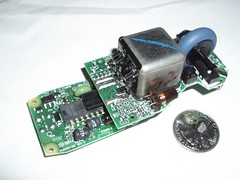
Except when you take it apart, it turns out the gyro is huge:
I’m considering talking to Gyration about getting a few OEM samples of their gyro for non-mousing applications. Or maybe just get the datasheet from them and canabilize some Air Mouses.
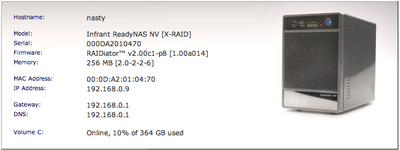
I recently obtained a ReadyNAS NV by Infrant, on the recommendation of my friend Ben Franco, who’s done much research on large disk arrays. The ReadyNAS pretty much rules. I think my long-standing storage woes may finally be over.
It’s a dedicated Network Attached Storage (NAS) box that does RAID-0, RAID-1, RAID-5, or a proprietary combo of the three called “X-RAID”. X-RAID allows you to start with one disk, move to two, then three, then four, all without rebuilding the RAID or changing RAID levels.
As the result of helping out some nascent space rover guys, I did a little write-up on some research into which digital cameras support remote capture and work under Linux.
So after six weeks T-mobile was finally able to wrest control of my number from the cold dead hands of Cingular.
And thanks to MobileWhack’s P900 pages for
providing the correct settngs to get the P900 on the Net. It is very cool to be able to web surf, IM, and check
email anywhere I can get a cell connection.
T-Mobile will allow their phones to be unlocked after about three months of service. Just send email to simunlock@t-mobile.com with your name, phone number and IMEI number and they’ll hook you up.link
I’m beginning the process of switching to T-Mobile (from Cingular), because “Tmo” has very cheap all-you-can-eat data plans: from free to $19.99, depending on the level of studliness you want.
I’ll be using a Sony-Ericsson P900.
There are apparently 4 different “Internet plans”:
$0.00 – “free/unlimited internet”, aka “basic WAP”
“just ports 80 (web), 25 (smtp), 110 (pop3), 143 (imap). ”
all others blocked (and some reports say only port 80 is allowed as of late 2003)
access to the t-zone portal sites. NATed?
uses APN ‘wap.voicestream.com’
$4.99 – “unlimited t-zones”, also aka “basic WAP”
same as above, but access to t-zone portal
uses APN ‘wap.voicestream.com’
$9.99 – “unlimited t-zones pro”
same as above, but access to slightly different portal
allows one to “access corporate email” ???
uses APN ‘wap.voicestream.com’
$19.99 – “T-Mobile Internet Unlimited”
no blocked ports, non-NATed too?
uses APN ‘internet2.voicestream.com’
Does ‘internet2′ represent a GPRS gateway and ‘wap’ a GSM gateway?
Calling their ‘data specialists’ was pointless. Comments in t-mobile howardforums are also very confused.
Some perhaps useful info gleaned tho, in rough order of usefulness:
“Definitive Internet/T-Zones plans post”. It gives current (Jan 2004) and historical definitions for the various T-Mobile Internet plans. Unfortunately,
he calls everything ‘WAP’ and thus makes no distinction between GPRS and GSM.
There is a T-Mobile Wireless Data Configurator that may be useful. Once you go through the ‘wizard’, it sends a magic SMS message with configuration information that’s supposed to ‘just work’.
Outgoing SMTP mail server : “myemail.t-mobile.com”
“Internet2/Internet3 DNS settings”:
West DNS – Primary: 216.155.175.40 , Alternate: 216.155.175.41
East DNS – Primary: 216.155.175.170, Alternate: 216.155.175.171
Central DNS – Primary: 216.155.175.105, Alternate: 216.155.175.106
whatever the fuck that means, maybe ‘internet2.voicestream.com’?
“So for those of us who want to use the free data instead of paying $19.99, I understand the following change has to be made in our connection settings.
Previous with $19.99 plan: +CGDCONT=1,,”internet2.voicestream.com”
Now with FREE wap plan: +CGDCONT=1,,”wap.voicestream.com”"
The ‘internet2′ / ‘wap’ hosts are referred to as ‘apn’s. what is that?
Sony-Ericsson t68i settings with T-Mobile:
T-Mobile Settings
Configure for free WAP access:
go to settings--->connect--->data comm
add account GPRS
CID=1
preferred service=GPRS and GSM
SMS access=GPRS
configure APN as wap.voicestream.com
no user id
no password
no IP address
no DNS address
Go to WAP Services
enter a new profile
configure to connect using GPRS from above
IP address=216.155.165.050 (dots get entered automatically)
No user ID
no password
data mode=conn. oriented
security=off
chg homepage: select a page such as http://wap.voicestream.com
If you call T-Mobile customer support, they can email you a file which
will automatically configure these settings, but you may be on hold for awhile!
Configure for unlimited internet access:
go to settings--->connect--->data comm
add account GPRS 2
CID=2
preferred service=GPRS and GSM
SMS access=GPRS
configure APN as internet2.voicestream.com
no user id
no password
IP address=216.155.165.050 (dots get entered automatically)
no DNS address
set Bluetooth options as follows:
mode-->operation mode=on or automatic
make discoverable or pair with your computer if you haven't done so.
set your computer or handheld to use bluetooth,
"telephone number": *99***2#
No account name or password.
You should be able to connect.
Random experiments, circuits, code, rapid prototyping examples, sometimes things to buy, and occasionally tunes by Tod E. Kurt.
Reach me at tod [at] todbot.com
Crash Space
Crash Space is a Los Angeles-based hackerspace. Come visit! Become a member! Learn Arduino or how to solder!
Yay BlinkMs!
BlinkM is a smart LED. Imagine an LED with a tiny computer inside, one that can be any color and have a life of its own. You can buy them now from one of our global distributors.
ThingM
A device studio that lives at the intersections of ubiquitous computing, ambient intelligence, industrial design, and materials science.
Recent Comments